Fauran Pay for JazzCash WooCommerce
Everything you need to install, configure, and use the plugin — written for store owners, no coding required.
1. Welcome / Introduction
Fauran Pay for JazzCash WooCommerceconnects your WooCommerce store to JazzCash, Pakistan's leading mobile financial services provider. It lets your customers pay using three methods, right from your normal WooCommerce checkout:
- Credit/Debit Card— Visa and Mastercard, via JazzCash's secure hosted payment page (including 3-D Secure).
- JazzCash Mobile Account — customers pay directly from their JazzCash mobile wallet balance.
- Over-the-Counter Voucher — customers receive a 12-digit voucher number and pay in cash at any JazzCash outlet.
Who this plugin is for: WooCommerce store owners in Pakistan (or selling to Pakistani customers) who want to accept local payment methods without handling any cardholder data on their own server, and without paying for a third-party gateway aggregator.
Key benefit:customers enter their card or wallet details on JazzCash's own secure page, not on your site. Your server never sees a card number, CVV, or wallet PIN — this keeps your PCI compliance burden to a minimum.
2. Key Features
A quick overview of what's included in version 1.0.0.
Three Payment Methods
Card, JazzCash Mobile Account, and Over-the-Counter Voucher — each is its own toggleable WooCommerce payment method.
Hosted-Page Security
Card and wallet details are entered on JazzCash's own secure page — never on your server.
Secure Hash on Every Transaction
Every request and every response is signed and verified with HMAC-SHA256. Unverifiable responses are rejected automatically.
Built-in Sandbox Mode
A permanent, always-visible toggle lets you test the full payment flow before switching to live credentials — no code edits required.
Automatic Order Updates
A Return URL updates the order the moment the customer comes back, and an IPN webhook confirms Voucher payments once settled.
Transaction Details on Every Order
The order screen shows the JazzCash transaction reference, retrieval reference number (RRN), and response code/message.
Redacted Debug Logging
Optional request/response logging via WooCommerce > Status > Logs, with passwords, card numbers, and hashes always hidden.
HPOS & Checkout Blocks Ready
Fully compatible with WooCommerce's High-Performance Order Storage and the block-based checkout.
3. Requirements
Make sure your store meets these requirements before installing.
| Requirement | Minimum |
|---|---|
| WordPress | 6.6 or higher |
| PHP | 7.4 or higher |
| WooCommerce | 7.0 or higher (required — this plugin adds WooCommerce payment gateways and does nothing without it) |
| Store currency | Pakistani Rupee (PKR) — JazzCash gateways only appear at checkout when the store currency is set to PKR |
| Checkout page type | Classic (shortcode) checkout. The WooCommerce Cart & Checkout Blocks are not yet supported — see the callout below. |
| JazzCash account | A free JazzCash Sandbox account for testing, and a verified JazzCash Merchant account for live payments |
If your Checkout page uses the WooCommerce Cart & Checkout Blocks (common on newer themes/setups), edit that page and switch it to the classic [woocommerce_checkout] shortcode. JazzCash payment options will not appear on the block-based checkout in this release.
No other plugins are required. This is a standalone WooCommerce payment gateway — it does not depend on WP Job Manager, membership plugins, or any other add-on.
4. Installation
Follow these steps in order. The whole process takes about five minutes.
- 1
Upload the plugin
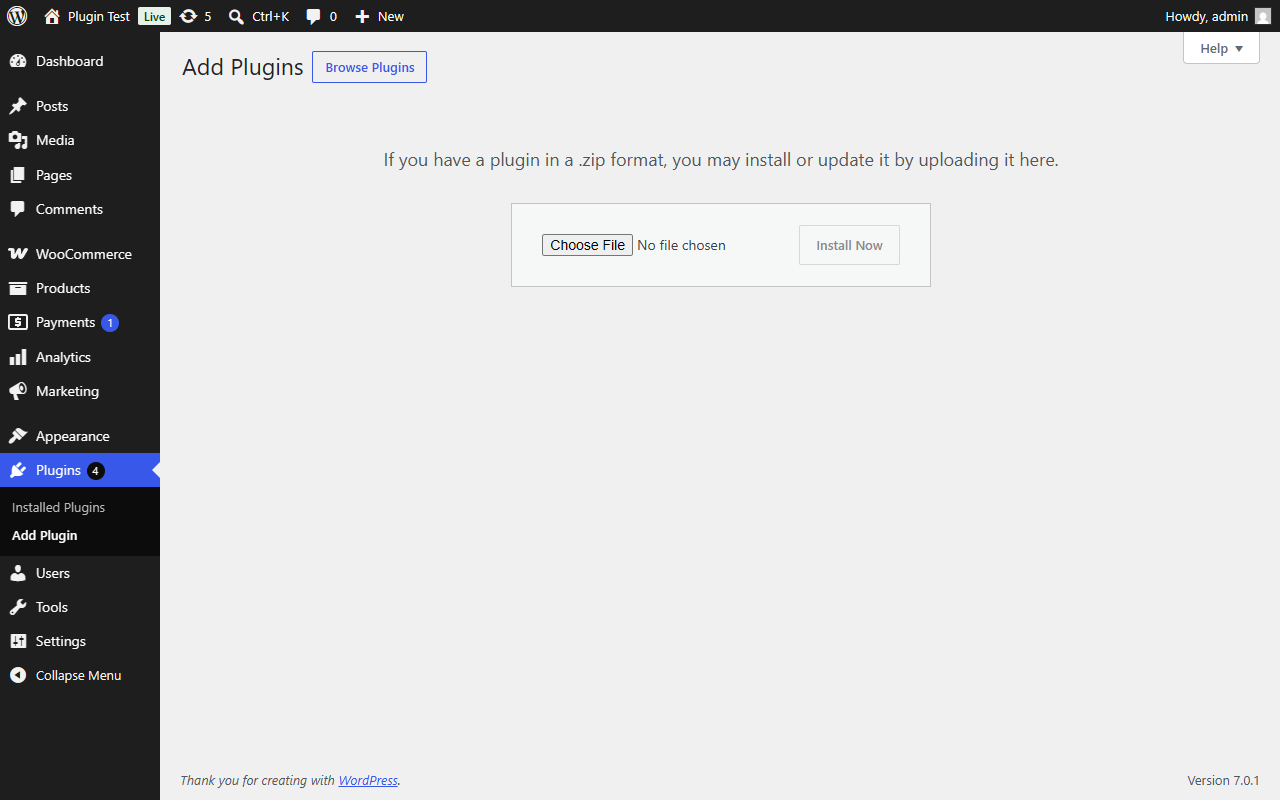
In your WordPress dashboard, go to Plugins > Add New Plugin > Upload Plugin, choose the plugin ZIP file you downloaded, and click Install Now.
Plugins > Add New > Upload Plugin - 2
Activate the plugin
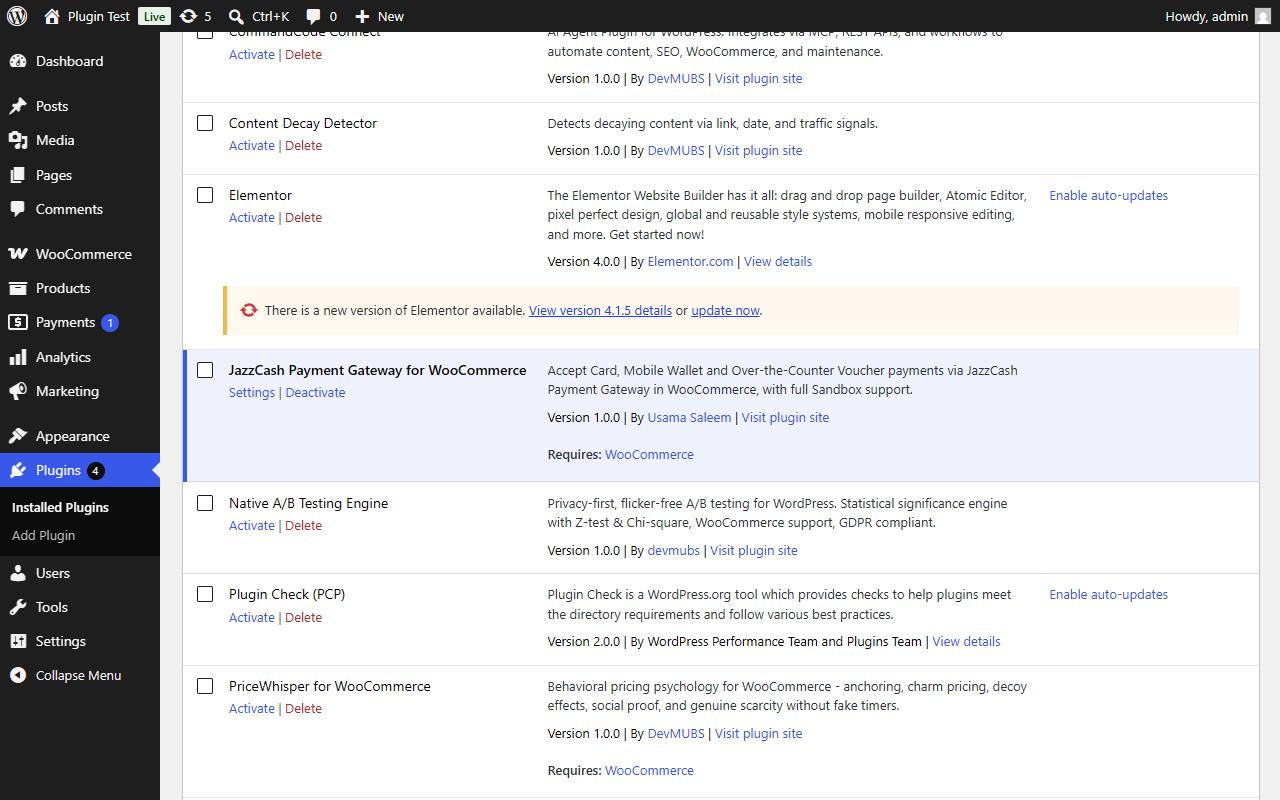
Once installed, click Activate Plugin. If WooCommerce isn't active, you'll see a notice asking you to install/activate it first.
Plugins list after activation - 3
Open WooCommerce Payment settings
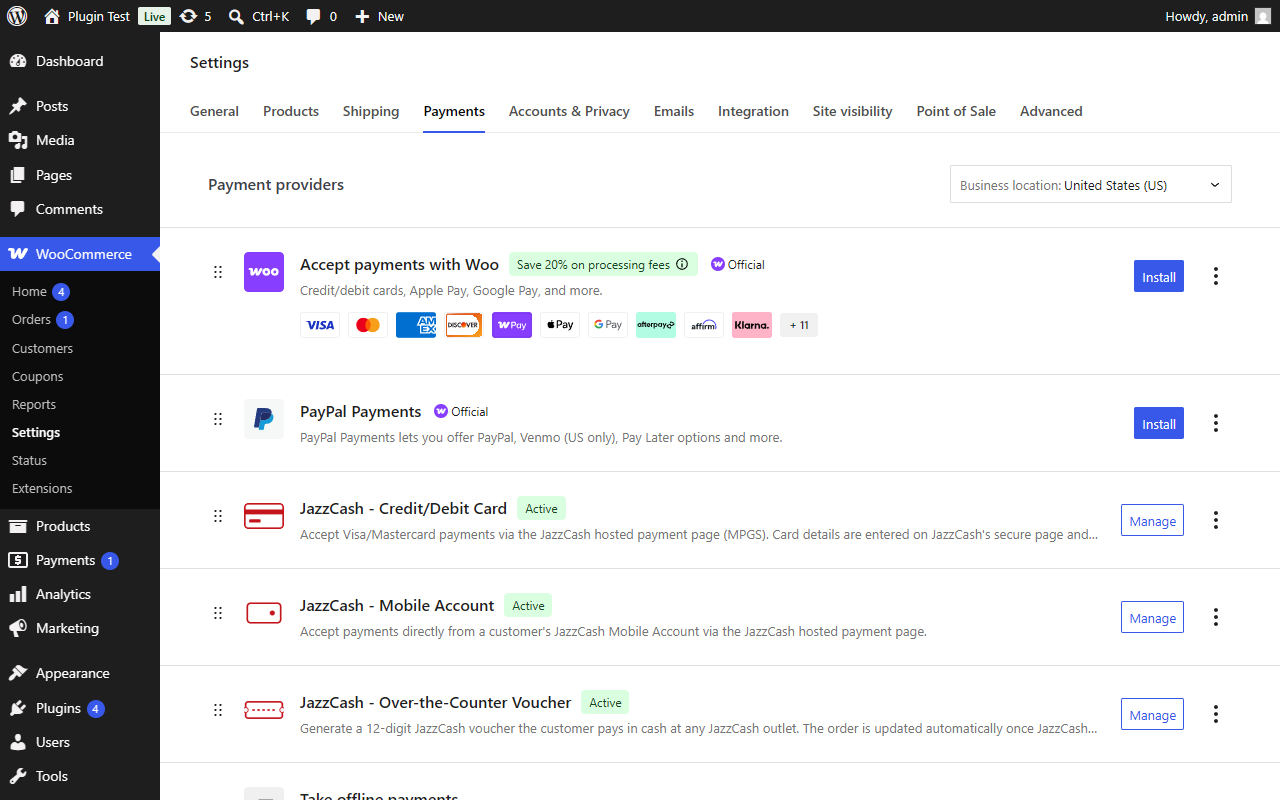
Go to WooCommerce > Settings > Payments. You'll see three new payment methods: JazzCash - Credit/Debit Card, JazzCash - Mobile Account, and JazzCash - Over-the-Counter Voucher.
WooCommerce > Settings > Payments - 4
Enable and configure a gateway
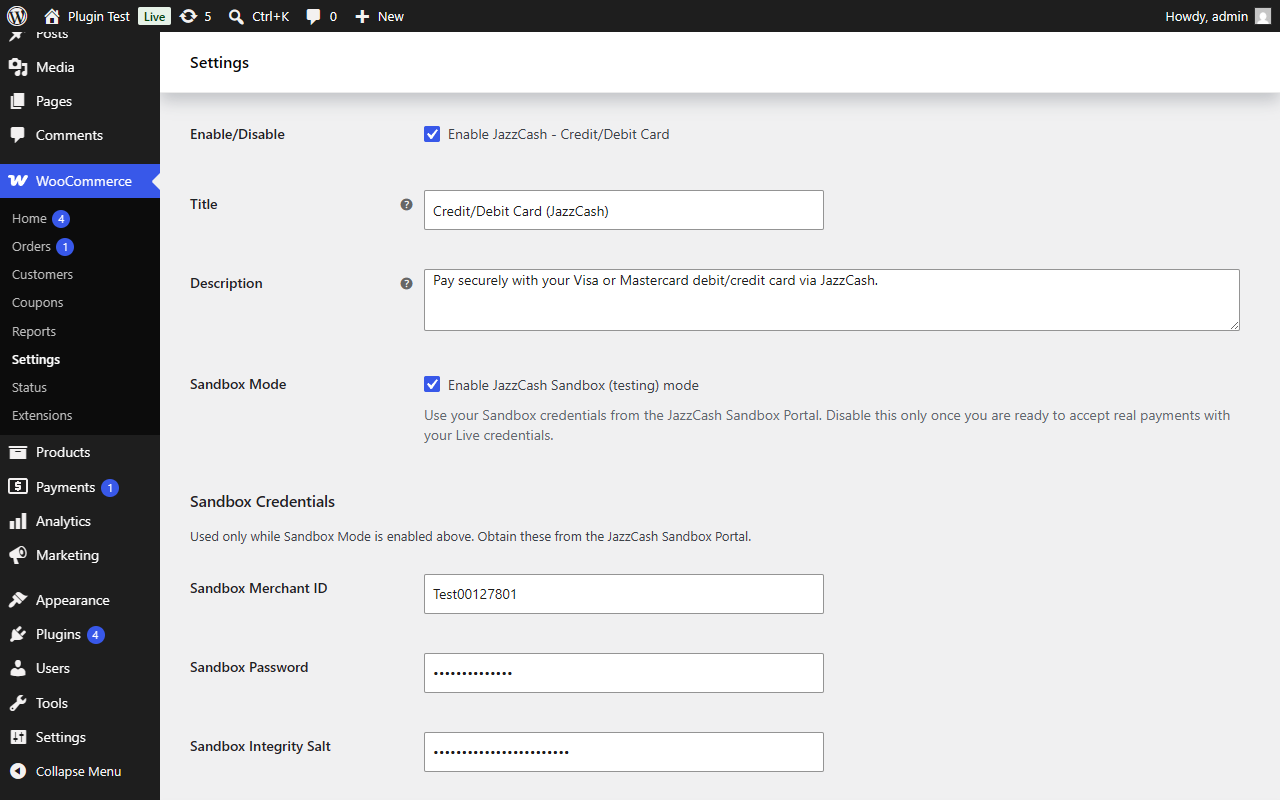
Click Manage (or the gateway name) next to any method, tick Enable, then fill in your Sandbox credentials — see Getting Started below.
Gateway settings screen
5. Getting Started / Quick Setup
The first things to configure right after activation.
- 1
Get your Sandbox credentials
Sign up for a free account at the JazzCash Sandbox Portal to receive a Merchant ID, Password, and Integrity Salt. These are separate from your future live credentials. - 2
Enter your credentials per gateway
On each gateway's settings screen, Sandbox Mode is enabled by default. Enter your Sandbox Merchant ID, Password, and Integrity Salt in the fields that appear underneath. - 3
Register your callback URLs with JazzCash
Every gateway's settings screen displays a Return URL and an IPN URL, unique to your site. Copy both into your JazzCash Sandbox/Merchant Portal configuration so JazzCash knows where to send payment results.
Return URL: https://yourstore.com/?wc-api=jazzcash_return IPN URL: https://yourstore.com/?wc-api=jazzcash_ipn - 4
Place a test order
Add a product to your cart, check out, and choose a JazzCash payment method. Complete the test transaction using JazzCash's Sandbox test credentials, then confirm the order updates automatically in WooCommerce > Orders. - 5
Go live
When you're ready to accept real payments: enter your verified Live Merchant ID, Password, and Integrity Salt, then untick Sandbox Mode. The Sandbox Mode checkbox stays visible at all times, so you can always switch back to testing later if needed.
While Sandbox Mode is on, no real money moves — orders are processed against JazzCash's test environment only. A warning banner reminds you of this on the settings screen.
6. How to Use
Settings screen, field by field
Every gateway (Card, Mobile Account, Voucher) shares the same core settings:
| Field | What it does |
|---|---|
| Enable/Disable | Turns this specific payment method on or off at checkout. |
| Title | The name customers see at checkout (e.g. "Credit/Debit Card"). |
| Description | A short note shown under the title at checkout. |
| Sandbox Mode | Always visible. Checked = test/Sandbox environment. Unchecked = Live environment. Only the credential fields underneath change visibility — this checkbox itself never disappears. |
| Sandbox Merchant ID / Password / Integrity Salt | Your test credentials from the JazzCash Sandbox Portal. Shown while Sandbox Mode is checked. |
| Live Merchant ID / Password / Integrity Salt | Your verified live credentials from the JazzCash Merchant Portal. Shown while Sandbox Mode is unchecked. |
| Transaction Expiry (hours) | How long the issuing bank has to approve payment, up to JazzCash's 2160-hour (3-month) maximum. Default: 72 hours. |
| Debug Log | Logs gateway requests/responses to WooCommerce > Status > Logs for troubleshooting. Sensitive fields are always redacted. |
| Remove Data on Uninstall | Optional. Only if checked, deleting the plugin also removes its settings and order metadata. Left unchecked by default so nothing is lost if you reinstall later. |
Gateway-specific fields
The Mobile Account and Voucher gateways additionally have Bank ID and Product ID fields, supplied by JazzCash (Sandbox defaults are TBANK and RETL).
How the payment flow works
- 1
Customer chooses a method
At checkout, the customer selects Card, Mobile Account, or Voucher. - 2
Redirect to JazzCash
They're sent to JazzCash's secure hosted page to enter their card/wallet details, or to receive a voucher number. - 3
JazzCash reports back
JazzCash sends a signed result to your store's Return URL. The plugin verifies the Secure Hash before trusting anything in that response. - 4
Order updates automatically
On success, the order is marked Processing/Completed. On failure, it's marked Failed with the reason recorded as an order note. - 5
Vouchers settle later
Voucher orders are placed On hold immediately (cash hasn't been paid yet). Once the customer pays at a JazzCash outlet, JazzCash calls your IPN URL and the order is completed automatically — no manual follow-up needed.
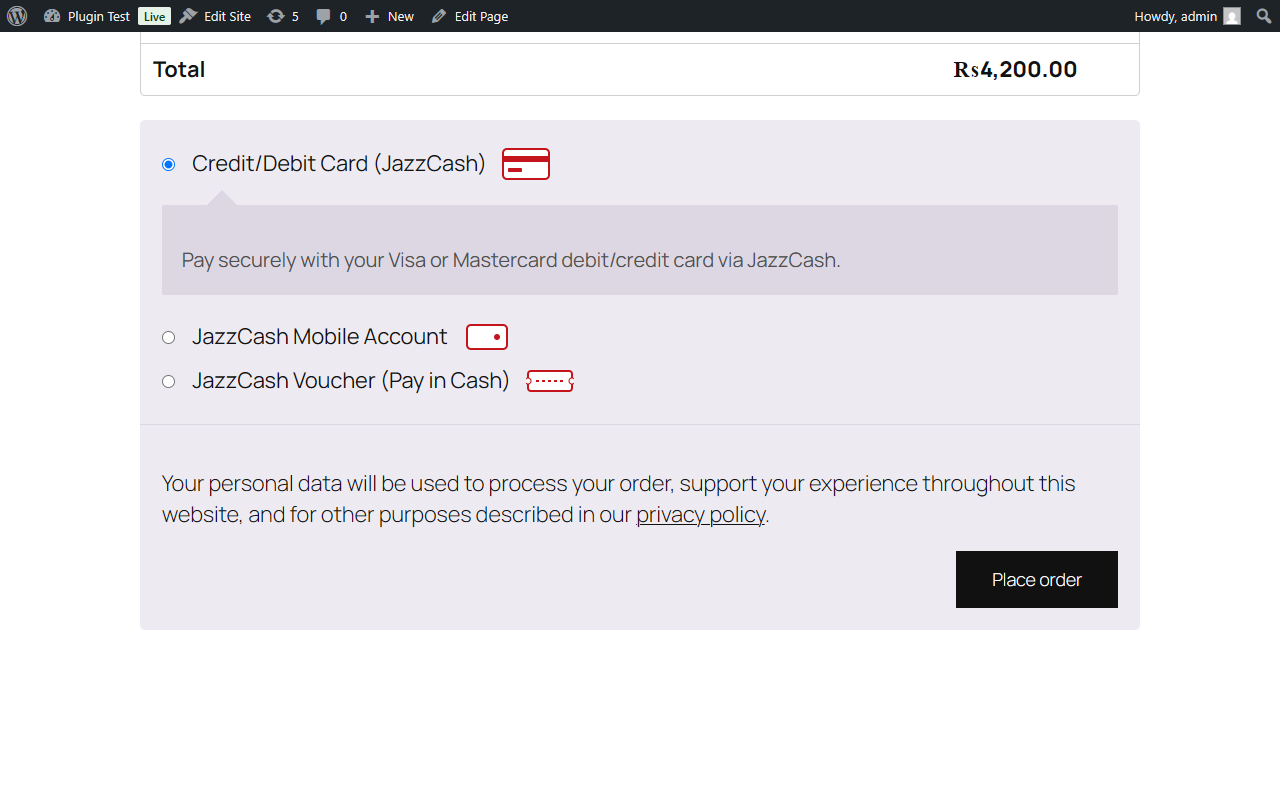
Viewing transaction details on an order
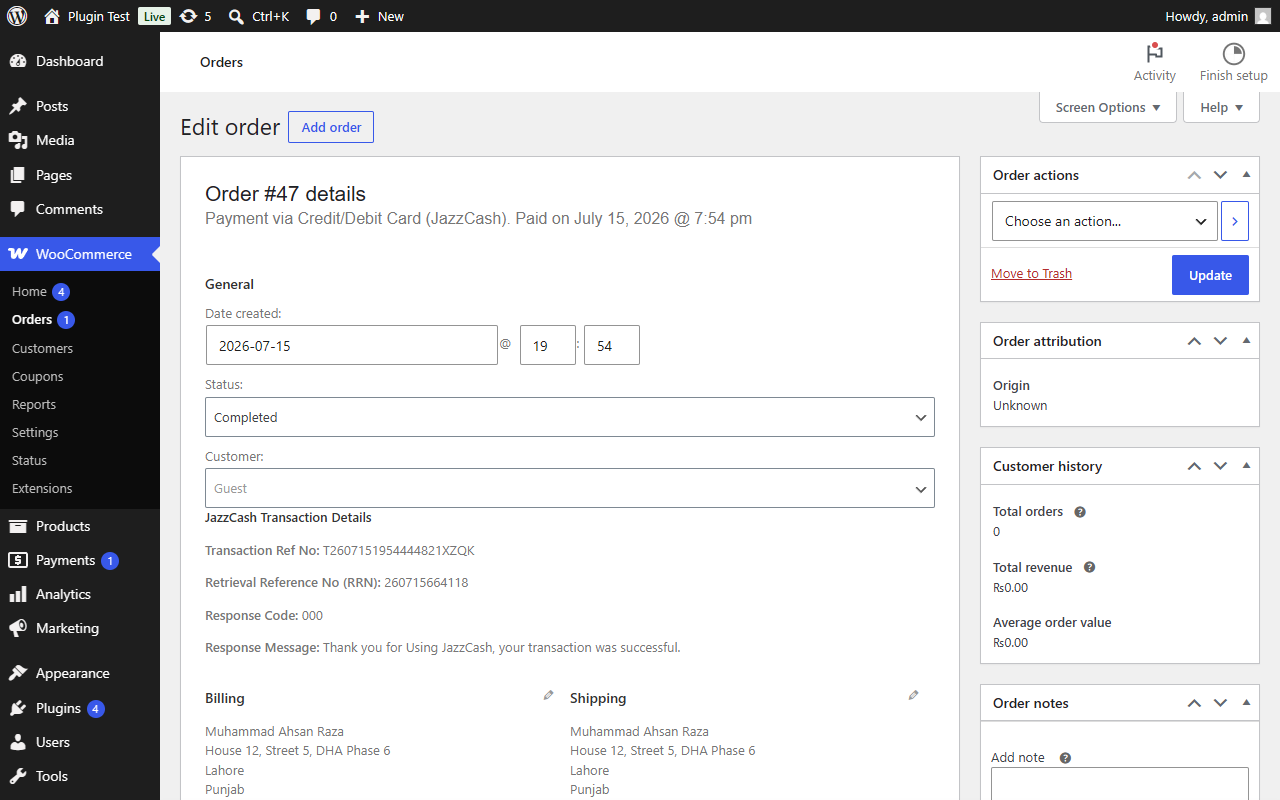
Open any order paid via JazzCash in WooCommerce > Orders. A "JazzCash Transaction Details" box appears near the top, showing the Transaction Reference Number, Retrieval Reference Number (RRN) if provided, and the last known response code/message.
Debug logging
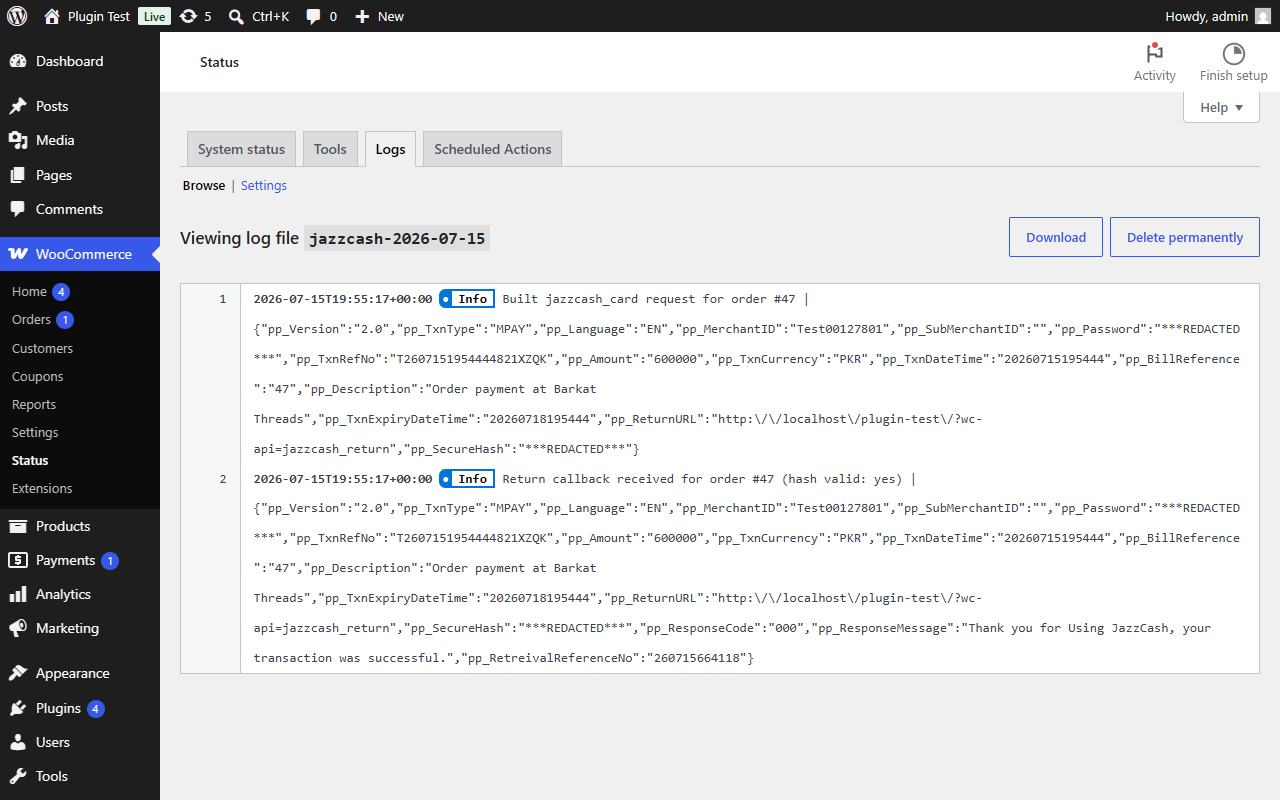
Enable Debug Log on any gateway, then check WooCommerce > Status > Logs and choose the log source jazzcash. Passwords, card numbers, CVVs, PINs, and secure hashes are always replaced with ***REDACTED*** — safe to share with support.
Shortcodes, widgets & blocks
None are needed. Once a gateway is enabled, it registers itself automatically as a WooCommerce payment method and appears at checkout on its own. There is nothing to insert into a page or post.
7. Developer Hooks & Filters
For developers extending the plugin. These are the only custom hooks the plugin exposes — everything else is standard WooCommerce (WC_Payment_Gateway, order status transitions, etc.) and needs no special documentation here.
None of these are required for normal use. Skip this section unless you're a developer customizing the plugin from a theme or another plugin's functions.php.
| Hook | Purpose |
|---|---|
jazzcash_wc_payment_portal_url | Filter — overrides the JazzCash hosted-page endpoint URL the customer is redirected to. Params: $url (string), $sandbox (bool). |
jazzcash_wc_card_icon | Filter — overrides the checkout icon shown next to the Card gateway's title. Param: $icon_url (string). |
jazzcash_wc_wallet_icon | Filter — overrides the checkout icon shown next to the Mobile Account gateway's title. Param: $icon_url (string). |
jazzcash_wc_voucher_icon | Filter — overrides the checkout icon shown next to the Voucher gateway's title. Param: $icon_url (string). |
Example: pointing at a JazzCash-communicated endpoint change
add_filter( 'jazzcash_wc_payment_portal_url', function ( $url, $sandbox ) {
	if ( ! $sandbox ) {
		return 'https://payments.jazzcash.com.pk/CustomerPortal/transactionmanagement/merchantform/';
	}
	return $url;
}, 10, 2 );
Example: replacing a checkout icon
add_filter( 'jazzcash_wc_card_icon', function ( $icon_url ) {
	return get_stylesheet_directory_uri() . '/images/my-custom-card-icon.svg';
} );
8. Frequently Asked Questions
Does this plugin store customer card numbers?
Where do I find my Merchant ID, Password, and Integrity Salt?
What URL do I give JazzCash for the Return URL / IPN URL?
https://yourstore.com/?wc-api=jazzcash_return and https://yourstore.com/?wc-api=jazzcash_ipn.Why isn't the JazzCash option appearing at checkout?
My orders aren't updating after payment — what should I check?
jazzcash). Most issues trace back to a mismatched Integrity Salt, mixing up Sandbox and Live credentials, or a firewall/security plugin blocking the inbound callback.What happens to Voucher orders before the customer pays?
Can I run Sandbox and Live at the same time for different gateways?
Does this plugin support subscriptions or recurring payments?
Is this plugin affiliated with JazzCash or Mobilink Microfinance Bank?
Can I change the title and description customers see at checkout?
Does this plugin work with the WooCommerce Cart & Checkout Blocks?
[woocommerce_checkout] shortcode instead.9. Troubleshooting
The gateway doesn't show up on the checkout page
[woocommerce_checkout] shortcode rather than the Cart & Checkout Blocks (block-based checkout is not yet supported). A gateway with any blank credential field, or a block-based checkout page, will not show JazzCash options.The redirect to JazzCash fails or shows a blank page
An order stays on "Pending" or "On hold" after the customer paid
The log shows "secure hash verification failed"
A Voucher order never completes, even after the customer paid in cash
I see a red notice saying my PHP or WooCommerce version is too old
10. Changelog
Version 1.0.0 — Initial release
- Three payment gateways: JazzCash Card, Mobile Account, and Over-the-Counter Voucher.
- Always-visible Sandbox/Live mode toggle, independent per gateway.
- HMAC-SHA256 Secure Hash generation and verification on every request and response.
- Return URL and IPN webhook handlers with automatic order status updates.
- Order-screen transaction details box (reference number, RRN, response code/message).
- Redacted debug logging via WooCommerce > Status > Logs.
- High-Performance Order Storage (HPOS) compatibility.
Classic checkout only in this release. These gateways use the classic [woocommerce_checkout] shortcode checkout. If your Checkout page uses the WooCommerce Cart & Checkout Blocks, switch it back to the classic shortcode — block-based checkout support is not yet included, and no JazzCash options will appear there until it is.
11. Support
Support covers installation help, configuration questions, and fixing genuine bugs in the plugin for the current supported version.
| Support email | [email protected] |
| Support URL | devmubs.com/support |
| Typical response time | Within 1–2 business days |
| Support period | 6 months included, extendable |
What's not covered: custom development, third-party plugin/theme conflicts outside our control, and issues with your JazzCash merchant account itself (contact JazzCash directly for account-level issues).
12. Credits & License
This plugin is licensed under the GNU General Public License v2.0 or later, the same license as WordPress itself.
Read the full GPLv2 license text.
Credits
- Built by Usama Saleem — devmubs.com
- No third-party JavaScript or CSS libraries are bundled. jQuery, used by the settings-screen script, is the copy already included with WordPress core — it is never replaced or duplicated.
- Built against JazzCash's publicly published Sandbox API documentation.
“JazzCash” is a trademark of its respective owner. This is an independent, third-party plugin and is not affiliated with or endorsed by JazzCash or Mobilink Microfinance Bank.